

Buy Online, Pick Up In Store (BOPIS) is no longer a convenience—it’s a customer expectation. Customers love it because it offers free delivery and immediate collection, but retailers love it even more.
Studies show customers who enter a store for BOPIS often make an impulse purchase, significantly driving foot traffic and increasing overall transaction value. Enabling Ship to Store (BOPIS) requires a robust system to manage the inventory transfer and the in-store collection workflow. The core challenge is seamlessly coordinating the sale on the e-commerce front-end with the logistics of routing the product from your Distribution Centre (DC) to the designated retail location.
Step 1: Establish the Inventory and Store Readiness Check
The process begins the moment the customer places the order online. Your Order Management System (OMS) must perform two critical checks instantly.
- Stock Allocation: The OMS must perform a soft allocation of the item from the central DC’s stock. This ensures the item is reserved and unavailable for any other online sale.
- Store Validation: The system must confirm the chosen store is currently operational and ready to receive BOPIS orders. This prevents orders from being routed to locations under refurbishment or temporarily closed.
format_quote
“Action: Once the item is reserved and the store is validated, the OMS creates a dedicated transfer order. This order moves the stock out of the DC’s inventory and designates it for the store’s ‘In Transit’ status.”
Step 2: The DC-to-Store Fulfilment Workflow
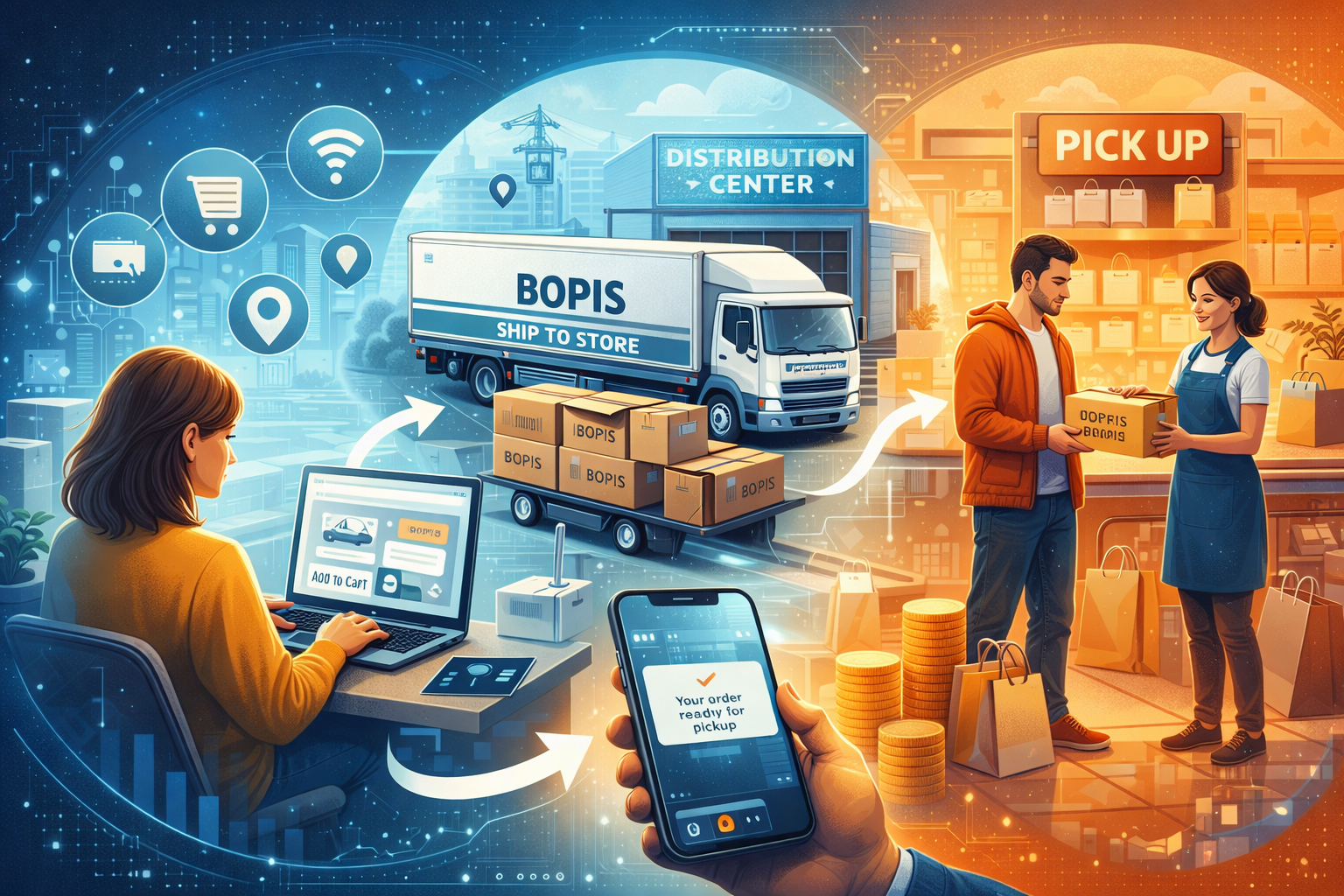
DC to Store Routing
- Dedicated Packaging: The DC team packs the item using specific packaging or labels clearly marked “BOPIS / Ship to Store” with the final store destination.
- Carrier Manifest: The manifest system must generate a label correctly addressed to the store location rather than the customer’s home address.
- Status Update: Once the order ships, the OMS sends an automatic notification to the customer and updates the store staff via an internal app.
Store Receipt
Store staff scan the package’s barcode, instantly changing the order status in the OMS from “In Transit” to “Ready for Collection.”
Collection & Proof
Staff verify identity and scan the barcode one last time, moving stock into “Collected” status and closing the order cycle.
Frequently Asked Questions
What is BOPIS and why is it important for retailers?
expand_more
BOPIS stands for Buy Online, Pick Up In Store. It is crucial for retailers because it not only meets customer expectations for fast, free collection, but it also drives foot traffic into physical locations, which often leads to additional impulse purchases.
How does the system handle stock when a BOPIS order is placed?
expand_more
The Order Management System (OMS) immediately performs a soft allocation of the item from the central Distribution Centre. This reserves the inventory, preventing double-selling on the e-commerce storefront before the item is shipped to the local store.
How do we prevent customers from arriving before their order is ready?
expand_more
A robust BOPIS workflow relies on accurate scanning and status updates. The system only triggers the final “Ready for Collection” notification to the customer after store staff have physically received the package from the DC and scanned it into the local inventory.